

Many people don’t know how to create a PPT using words, especially when it comes to complex documents like reports, proposals and research documents. Although you can manually do the task, but it can be extremely overwhelming. You do not only have to copy the text but also have to adjust the layouts, search images, and format style of every slide.
This is exactly where the AI tools come in for help. With solutions like TeraBox AI Presentation Maker, you can now move complex documents into clear and concise PowerPoint Presentations with engaging aesthetics easily. Thus, saving time for more important tasks.
However, knowing how to do it properly is essential. The same is why we have formed this guide, which will discuss a complete and detailed step-by-step guide to create a useful PPT using Word within the minimum possible time frame. So, without any further ado, let’s begin.
Part One: Why Manual Word-to-PPT Conversion Falls Short
If you are someone who has tried to convert the Word to PPT through the manual process, you must know how frustrating and tiring the process can be. A typical document contains long paragraphs of words and complex formatting.
At the same time, they also have tables, charts, and images, which might be difficult to adjust from time to time. The same is why manual conversion often causes:
- Time-consuming copy-paste cycles
- Inconsistent formatting
- Disorganized slide flow
- Poorly aligned text and images
- Repetitive layouts
- Fatigue and lost productivity
Even a short document can take over an hour to convert. For longer reports, the process becomes exhausting.
The Limits of Basic Tools
Traditional tools marketed as Word-to-PPT converter solutions usually copy text directly into slides without understanding the structure. They fail to detect headings, break paragraphs properly, or maintain the narrative flow. As a result, the final presentation looks messy and requires extensive editing.
These shortcomings matter because the presentation design influences audience engagement, and cluttered slides reduce clarity. At the same time, the poor structure weakens storytelling, and errors hurt professional credibility.
This is why AI-driven solutions are becoming the new standard. They understand content, not just text- and create genuine presentations rather than blank slides filled with copied content.
Part Two: Understanding How AI Tools Convert Word to PowerPoint
Modern AI tools are transforming the way we convert Word to PPT. Instead of treating Word files as plain text, AI analyzes, reorganizes, and visually enhances content.
1. Hierarchy Recognition
Hierarchy is the basic blueprint of your whole presentation. It helps the reader know what the overall presentation is about, what points are important, and how they are explained. However, forming the correct hierarchy can be confusing.
The same is where AI comes for help. It identifies: Titles, Headings, Sub-points, Key ideas, Lists, and tables. This ensures every slide has a clear purpose.
2. Visual Optimization
AI applies professional design rules such as balancing the white spaces, correcting the font hierarchy, and cleaning the alignment. At the same time, it also helps with readable bullet spacing, which results in polished slides instantly.
3. Automatic Slide Titles
Instead of using long document headings, AI generates slide titles that summarize the core idea. Thus, making the deck easier to follow.
4. Smart Summarization
AI converts long paragraphs into digestible bullet groups. It also detects highlights and essential insights. As a result, the reader can grab the central idea and all the focal points of your content instantly.
5. Media Suggestions
Advanced AI tools, like TeraBox can suggest icons, images, visual markers, and layout variations. This elevates basic text into visually dynamic slides. At the same time, by understanding both structure and storytelling, AI creates presentations that feel like they were manually designed by professionals.
Part Three: Step-by-Step Guide- Converting Word to PowerPoint with TeraBox AI
TeraBox’s new AI Presentation Maker makes it incredibly easy to create a PPT using Word. Here’s how the process works.
Step 1: Log in to TeraBox
Visit the official website of TeraBox on your PC through the Web browser. Log in to your account. If you do not have an account, simply sign up for it by following the steps as guided.
Step 2: Upload Your Document
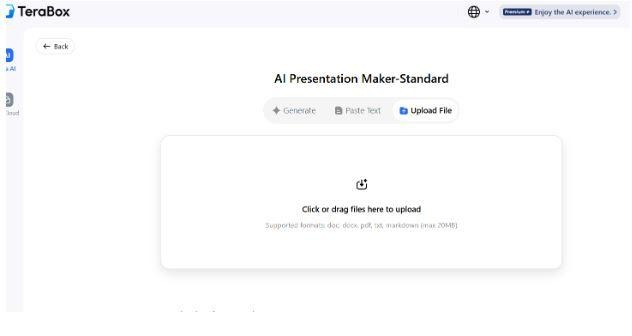
Now, click on the AI Presentation maker and upload your Word document from which you want to extract the text. To do so, click “Upload File” and select your files from the desired destination on your Computer. Select it and open.
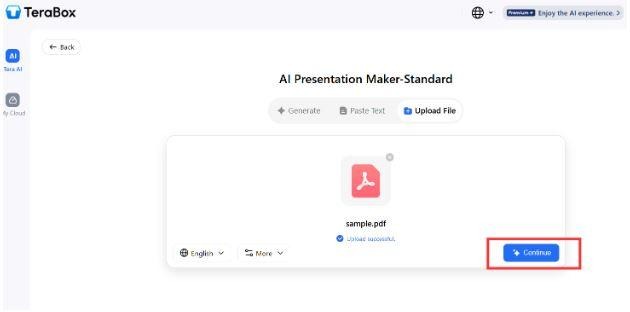
Now wait for a few seconds until the AI scans the structure instantly. If there is a problem in uploading, refresh the page and try again. Once done, click on “Continue”.
Step 3: Review the Outline
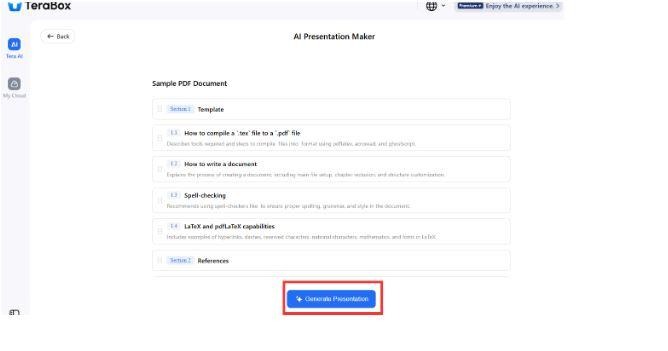
Wait for a few seconds, and the software will display a basic outline on the screen after analyzing the content. Review it thoroughly and make changes if needed. Once you are done, click on “Generate Presentation.
Step 4: Choose Design
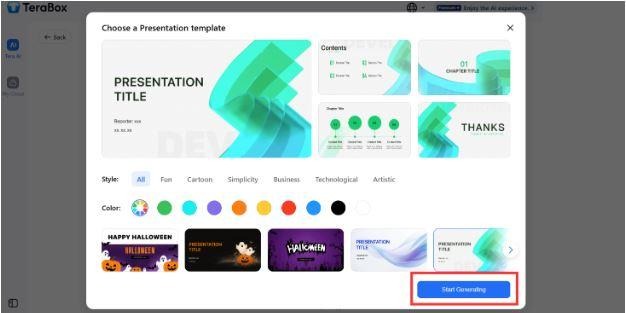
TeraBox AI allows you to choose the theme and basic aesthetic design of your presentation. It has a wide variety of options to choose from. Explore and click on the presentation theme that suits you the best. Click on “Start Generating”.
Step 5: Personalize
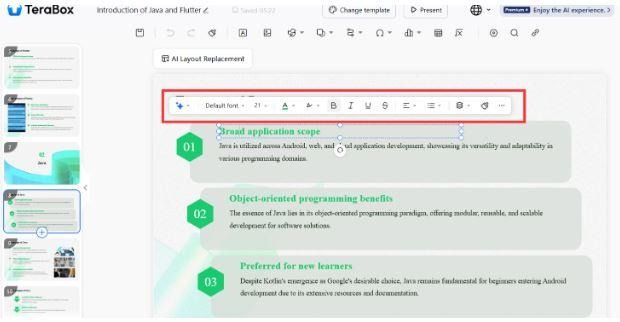
In a few seconds, TeraBox will present a detailed yet concise series of slides in front of you. Review it. You can add personalization through features like font color change and size change. If needed, add images to enhance the overall engagement.
Step 6: Download & Share
Once satisfied, download the final PPT file. You can also store it directly in TeraBox cloud for easy access across devices through Download or Save to Cloud buttons present on the bottom right corner of your screen.
Part Four: Selecting the Right AI Conversion Tool
Choosing a reliable tool is essential when learning how to create a PPT using Word. Not all AI systems produce the same quality. Here’s what to look for:
- High-Quality Design Templates: These softwares offer high-quality designs with modern themes and templates.
- Accurate Structure Interpretation: Such software detects headings, hierarchy, and identifies the relationships between ideas.
- Speed: help through fast conversion, that saves time during tight deadlines.
- Customization Options: Provides multiple customization options with themes, colors, font controls, and layout choices to make your slides unique.
- Image and Media Support: The tool handle multiple media aspects, including: photos, charts, tables
- Cloud Integration: TeraBox excels here, allowing easy storage, sharing, and cross-device access.
Part Five: Future Trends and Ethical Considerations
AI will continue to reshape how we create presentations. Here are some important future developments.
- Fully Automated Presentation Narratives
- AI may soon be able to create voice-over scripts, presenter notes, and complete storytelling for enhanced convenience of the user.
- Real-Time Content PolishingAI will edit slides dynamically as you type, fixing spacing, visuals, and clarity instantly.
- Deep Personalization: AI will adapt the slide design to your: Brand, Tone, Industry, and Preferred style
Ethical Considerations
When using any AI convert Word to PPT tool, consider:
- Data privacy
- Secure file handlinG
- Transparency of AI-generated content
TeraBox, with its secure cloud ecosystem, is designed to ensure safe file processing and user privacy.
Conclusion
In a nutshell, knowing how to create a PPT using Word is essential. It not only reduces the time frame but also enhances the overall efficiency. While doing it annually requires an immense amount of time, it is also frustrating, tiresome, and hectic.
However, with AI powered solutions like TeraBox, you can transform this long process into a smoother one. make a few clicks and the tool will generate visually rich slides and build clear, story-driven presentations.
So, no matter if you are prepping academic content or need help with business decks and project reports, TeraBox AI gives you the power to get done with the task within a few minutes. Hence, explore tools today and see how effortlessly and smoothly you can create the PPT using Word through artificial intelligence.