


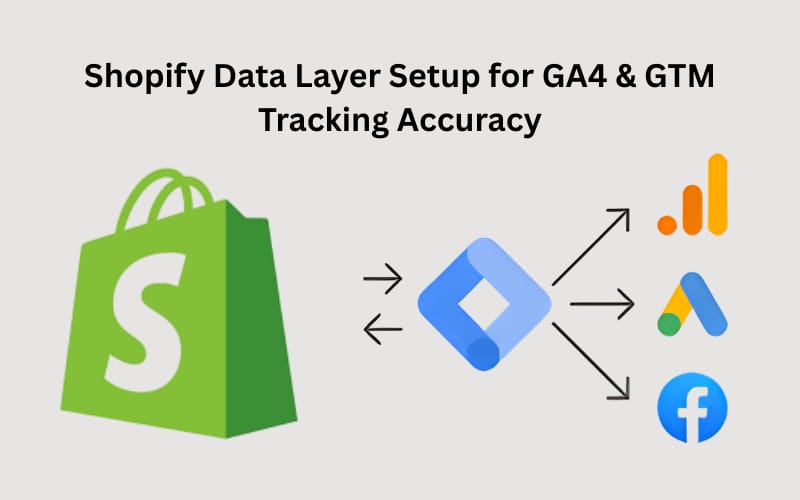
Each product visit, click, or order in your Shopify store provides valuable information that reflects your marketing and sales strategies. However, without an accurate tracking system, the most sophisticated analytics tools can provide partial or inaccurate data. It is at this point that a properly designed Shopify Data Layer installation is necessary.
By the integration of the data layer with Google Tag Manager (GTM) and Google Analytics 4 (GA4), store owners can record all significant interactions, from the customer browsing and viewing a product to making a purchase, with pinpoint precision. It turns a fragmented tracking of events into a united framework that makes your reports accurate for analyzing customer behaviour.
In this blog, we will take you through the steps of how a proper Shopify Data Layer setup with GA4 and GTM can help you make your tracking more accurate and valuable for understanding customer behavior and optimizing campaigns and conversions.
What is a Shopify Data Layer?
A Shopify data layer simply represents a structured JavaScript object present between your Shopify store and tracking tools like GTM and GA4. It is responsible for storing and transmitting information from the eCommerce or Shopify store to the Google Tag Manager (GTM), which then shares it for analysis to Google Analytics 4 (GA4).
As an example, when a user clicks Add to Cart, a particular event with the information about the product name, price, and quantity will be added to the data layer. GTM then reads those events and sends them to GA4, Meta Pixel, or any other analytics solutions.
An effectively-designed Shopify Data Layer not only get the capturing of these interactions correctly, but also assists in ensuring consistency as your site develops. It establishes a baseline to monitor accuracy using GA4 and GTM to make your marketing reports accurate and practical.
Why Setting up a Data Layer in Shopify Is Important
The default Shopify and GA4 integrations usually result in incomplete or inaccurate collection of data. For example, the regular configurations might not receive all the checkout procedures, cart updates, and abandoned actions. Such invisibility leads to distortion in analytics insights, hinders campaign optimization, and eventual impact on the overall ROI, which is why many businesses rely on Shopify development services for proper tracking setup.
With a proper Shopify Data Layer for GA4 installation, you will get:
- Accurate monitoring of every activity of customers.
- Increased precision in tracking when used with server-side tagging or GTM configurations.
- Enhanced remarketing with enriched event data.
- Complete authority over the information being forwarded to analytics and advertisement systems.
A well-organized data layer is the solution that would close the existing gap between Shopify and GA4 and allow marketers to make data-driven choices with confidence.
How Shopify Customer Events Work?
Shopify was one of the pioneers in introducing Customer Events through a standardized event model. These are automatically invoked when important actions are required; these include:
- Viewitem – each time a product is viewed.
- Addtocart – adding an item to the cart.
- Begincheckout – the user initiates the checkout.
- Purchase – a purchase is made when a transaction takes place.
Such Shopify Customer Events may be sent into the data layer to enhance accuracy in tracking. Together with Shopify event tracking GA4 server-side implementation or server-side tagging GA4 can assist marketers in receiving cleaner and privacy-compliant cross-session and cross-device data.
Benefits of Shopify Customer Events and Custom Data Layer Setup
A Shopify Data Layer implementation in coordination with Shopify Customer Events has several benefits:
- Increased tracking performance – All interactions are made without loss of data.
- Quicker and more spotless tracking – Shopify GA4 tracking and GTM are structured well to report on events.
- Better remarketing and attribution – Allows proper ad optimization.
- Privacy compliance – Does not conflict with current privacy laws such as GDPR and CCPA.
- Scalability – Works with other stores and regions.
The combination of these advantages will establish a solid base for your analytics strategy to make sure that your marketing insights are accurate and practical.
Implementing Shopify Data Layer for GA4 and GTM: A Step-by-Step Guide
Setting up your Shopify Data Layer correctly requires a structured approach. Here’s a simplified step-by-step guide to ensure accuracy:
Step 1: Create a Google Tag Manager account
You can begin by making a GTM account and container. Copy the GTM container code before you go on to the next step.
Step 2: Enter the GTM code in Shopify
Go to the Shopify admin portal, then visit the ‘Online Store’. Next, open ‘Themes’ and click on ‘Edit Code’. Now, open the theme.liquid file and place the GTM script after the <head> tag.
Step 3: Insert the code for Data Layer
Now, write or paste the data layer snippet, just below the GTM script:
<script>
window.dataLayer = window.dataLayer || [];
window.dataLayer.push({
event: ‘page_view’,
pageType: ‘{{ template.name }}’
});
</script>
Step 4: Set up eCommerce event tracking
To track events, make GA4 event tags with event-specific scripts in templates like product.liquid, cart.liquid, and checkout.liquid. These scripts will send data about product views, add-to-cart, and purchases.
Step 5: Make sure to save and publish your modifications
After adding the code, save the files and make the new theme available to the public.
This is what you need to do to set up your Shopify Data Layer setup and to make sure GA4 and GTM can get the accurate data. Shopify experts are well familiar with how to implement the Shopify data layer for GA4 and GTM, so if you get stuck at any step, you can simply hire Shopify expert and get professional assistance.
Shopify GTM Setup For Enhanced Tracking Accuracy
Once your Shopify store has a functioning data layer, move to Google Tag Manager:
- Log in to your GTM account and create a new container for your Shopify site.
- Add the GTM container script to your theme.liquid file, right after the data layer code.
- Set up data layer variables such as the product name, ID, and price of a product in GTM.
- Make triggers for events like view_item, add_to_cart, and purchase.
This phase makes sure that GTM only reacts to the appropriate data layer pushes and forwards them to GA4 or other tools correctly.
Configuring GA4 Tags for Shopify Data Layer Events
Now, you need to link BTM to GA4:
- Make a GA4 Configuration Tag with your Measurement ID.
- Next, make Then, set up GA4 Event Tags for important activities like Add to Cart and Purchase.
- From the data layer, map event parameters like item name, price, and currency.
- To get more detailed insights, enable enhanced eCommerce reporting in your GA4 property.
This GA4 server-side implementation makes sure that the events are reported accurately and assists in eliminating problems that might come up during client-side tracking. If you hire Shopify developers, the experts will do it on your behalf and you can get accurate data in a compliant way.
Testing and Troubleshooting Tracking Setup
Always test your configurations properly before you post:
- Make use of GTM Preview Mode to ensure that the data layer events are firing.
- Check GA4 DebugView to validate the reception of an event.
- Check your browser’s developer console to see if pushes are missing or if there are any script issues.
- Do a few test transactions to check that the purchase events match up with the real sales data.
Continuous testing allows you to verify that the Shopify Data Layer setup continues to operate well and offers high tracking accuracy with GA4 and GTM, even after you make any theme or app modifications.
Final Thoughts on Shopify GA4 & GTM Data Layer Setup
The GA4 and GTM setup marks the beginning of future-ready analytics to achieve Shopify conversion tracking accuracy and make solid data-driven decisions. Shopify merchants can gain deeper insights, improve ad performance, and make truly data-driven decisions with the correct GA4 server-side implementation and GTM setup.
Common FAQs About Shopify Data Layer Setup
1. Why do I need a customized Shopify Data Layer?
Basic events are tracked by default, but specific information like product attributes and checkout procedures is left out. A customized Shopify data layer offers complete visibility to make detailed data-driven decisions.
2. Can someone without technical knowledge implement a data layer?
You need to know the basics of coding. However, the procedure may be made error-free and seamless by collaborating with skilled Shopify or analytics experts.
3. How can I verify that my events are executing properly?
For real-time event trigger validation, use GA4 DebugView and GTM Preview Mode.
4. How can I install GTM for my Shopify store?
You can either install manually by adding a GTM container code to your Shopify file or make use of GTM integration applications.